In some instances you don’t want number fields to display with comma’s in SharePoint views. Unfortunately, there is no setting to not display commas on number fields.

Use Calculated field to remove comma’s from number field
For this example, I’m going to display a number column (Alias) in a calculated field (Alias Calculated).
Create a calculated field, and for the
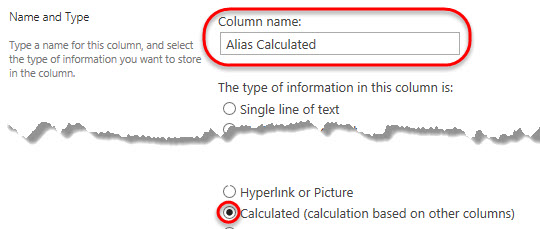
**Do not copy and try to paste this formula, type it in your calculated field and make sure to use the Insert Column option.
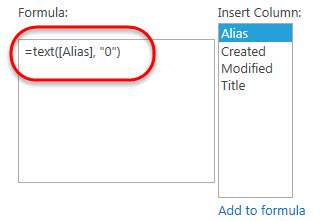
2. Type in the following formula:
=text(
Then double click on your number field in the Insert Column box
then type:
,”0″)
Your formula should display something like this: =text([Alias],”0″)
Choose a
number field, with
0 decimal places and click
OK.

This should display your number column without the commas while retaining the benefits of using a number field (field validation & sorting):
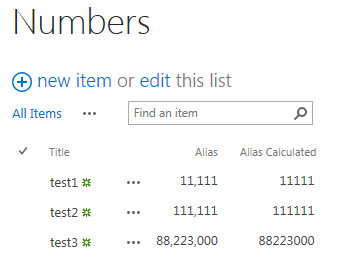
*If you save the number as in the Text format type, sorting will not work correctly.
 AasimNaseem

Comments
No comments yet — be the first to share your thoughts.
Leave a Reply